
Structured data does not require a plugin. If you can paste a snippet into your theme, you can output clean JSON-LD on exactly the pages you choose, with zero extra database queries, zero settings screens and zero risk of a schema plugin rewriting your markup after an update.
This tutorial shows the exact method: hooking into wp_head from functions.php, building the markup with wp_json_encode() so it can never break, targeting pages with WordPress conditional tags, and confirming everything with Google’s Rich Results Test. All the code below is copy-ready for Article, FAQPage and LocalBusiness. Full details on https://aioseo.com.
The short answer
To add schema markup to WordPress without a plugin, add a PHP function to your child theme’s functions.php file that builds a JSON-LD array, encodes it with wp_json_encode(), and prints it inside a <script type="application/ld+json"> tag on the wp_head hook. Use conditional tags such as is_singular('post') or is_front_page() so each schema type only loads where it belongs.

Why skip the schema plugin?
Schema plugins are convenient, but on a site that already runs an SEO plugin, a cache plugin and a page builder, they add another layer that you cannot fully see. Here is the honest comparison:
| Criteria | Manual JSON-LD (functions.php) | Schema plugin |
| Page weight | Only the properties you write | Often a large graph with unused nodes |
| Extra DB queries | None beyond existing post data | Options and post meta lookups on every request |
| Control over output | Total | Limited to the UI fields provided |
| Risk of duplicate schema | Low, you decide what prints | High when combined with an SEO plugin |
| Maintenance | You update the code when schema.org changes | Handled by the developer |
| Skill needed | Basic PHP copy and paste | None |
Three rules before you paste anything
1. Never edit the parent theme directly
A theme update will erase your code. Use one of these two safe locations:
- A child theme and its
functions.phpfile (best if you already run a child theme). - An mu-plugin file: create
/wp-content/mu-plugins/schema.phpand paste the code there. Must-use files load automatically, cannot be deactivated by mistake, and survive every theme change. Technically it is a file you control, not a plugin you install and configure.
2. Do not use header.php or the Theme File Editor
Older tutorials tell you to open Appearance > Theme Editor and drop raw JSON-LD into header.php. That advice has aged badly:
- Block themes (Twenty Twenty-Four, Twenty Twenty-Five and most modern themes) have no header.php file at all.
- Hardcoded markup in the header cannot adapt to the current post, so titles and dates end up wrong.
- A single missing bracket in the file editor can white-screen your site.
The wp_head hook works on classic themes and block themes alike. Use it.
3. Turn off duplicate output from your SEO plugin
Yoast, Rank Math and All in One SEO already print an Article or WebPage node. Two competing Article blocks on one URL is the number one cause of confusing Search Console reports. Disable the one you do not want:
// Yoast SEO: remove its full schema graph
add_filter( 'wpseo_json_ld_output', '__return_false' );

// Rank Math: remove its schema graph
add_filter( 'rank_math/json_ld', function( $data, $jsonld ) {
    return array();
}, 99, 2 );
If you prefer keeping the SEO plugin graph, then only add schema types it does not produce (for example LocalBusiness opening hours or a custom HowTo).
Where to paste the code
- Back up your site, or work on staging first.
- Connect by FTP/SFTP or use your host’s file manager.
- Open
/wp-content/themes/your-child-theme/functions.php(or create/wp-content/mu-plugins/schema.phpstarting with<?php). - Paste the snippets at the end of the file. Do not add a second
<?phptag if one already exists. - Save, reload a post, then press Ctrl+U and search for
ld+json.
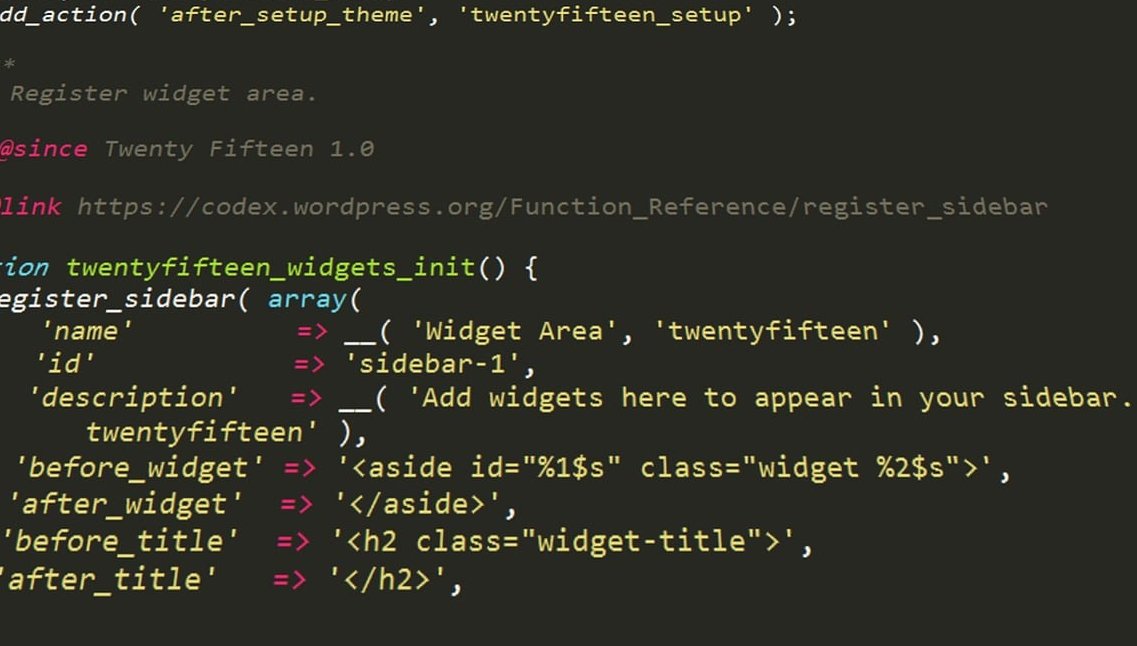
A tiny helper function (paste this first)
Every snippet below prints its output through the same helper, so you only write the escaping logic once:
<?php
/**
 * Print a JSON-LD block safely.
 */
function fft_print_schema( $schema ) {
    if ( empty( $schema ) ) {
        return;
    }
    echo '<script type="application/ld+json">'
        . wp_json_encode( $schema, JSON_UNESCAPED_SLASHES | JSON_UNESCAPED_UNICODE )
        . '</script>' . "\n";
}
Why wp_json_encode() matters: it converts your PHP array into valid JSON and escapes quotes, accents and line breaks automatically. Hand-typing JSON inside a PHP string is how most manual implementations end up with broken syntax errors in the Rich Results Test.
Code 1: Article schema for blog posts
This version pulls the title, excerpt, dates, author and featured image straight from WordPress, so it stays accurate forever without you touching it again. Full details on https://onlinemediamasters.com.
add_action( 'wp_head', 'fft_article_schema', 20 );
function fft_article_schema() {

    if ( ! is_singular( 'post' ) ) {
        return;
    }

    $post_id = get_the_ID();

    $schema = array(
        '@context'         => 'https://schema.org',
        '@type'            => 'Article',
        '@id'              => get_permalink( $post_id ) . '#article',
        'mainEntityOfPage' => array(
            '@type' => 'WebPage',
            '@id'   => get_permalink( $post_id ),
        ),
        'headline'      => wp_strip_all_tags( get_the_title( $post_id ) ),
        'description'   => wp_strip_all_tags( get_the_excerpt( $post_id ) ),
        'datePublished' => get_the_date( 'c', $post_id ),
        'dateModified'  => get_the_modified_date( 'c', $post_id ),
        'inLanguage'    => get_bloginfo( 'language' ),
        'author'        => array(
            '@type' => 'Person',
            'name'  => get_the_author_meta( 'display_name', get_post_field( 'post_author', $post_id ) ),
            'url'   => get_author_posts_url( get_post_field( 'post_author', $post_id ) ),
        ),
        'publisher'     => array(
            '@type' => 'Organization',
            'name'  => get_bloginfo( 'name' ),
            'url'   => home_url( '/' ),
            'logo'  => array(
                '@type' => 'ImageObject',
                'url'   => 'https://fftguru.com/wp-content/uploads/logo.png',
            ),
        ),
    );

    if ( has_post_thumbnail( $post_id ) ) {
        $img = wp_get_attachment_image_src( get_post_thumbnail_id( $post_id ), 'full' );
        if ( $img ) {
            $schema['image'] = array(
                '@type'  => 'ImageObject',
                'url'    => $img[0],
                'width'  => $img[1],
                'height' => $img[2],
            );
        }
    }

    fft_print_schema( $schema );
}
Two things to change: the logo URL, and 'Article' if you prefer 'BlogPosting' or 'NewsArticle'. Keep headline under 110 characters to stay within Google’s guidance.
Want it on pages and custom post types too?
Replace the condition with:
if ( ! is_singular( array( 'post', 'guide', 'case-study' ) ) ) {
    return;
}
Code 2: FAQPage schema driven by a custom field
Hardcoding questions is useless because they change on every post. This version reads a custom field named fft_faq where you write one FAQ per line in the format Question | Answer. If the field is empty, nothing prints.
add_action( 'wp_head', 'fft_faq_schema', 20 );
function fft_faq_schema() {

    if ( ! is_singular() ) {
        return;
    }

    $raw = get_post_meta( get_the_ID(), 'fft_faq', true );
    if ( empty( $raw ) ) {
        return;
    }

    $lines = array_filter( array_map( 'trim', explode( "\n", $raw ) ) );
    $items = array();

    foreach ( $lines as $line ) {
        $parts = explode( '|', $line, 2 );
        if ( count( $parts ) < 2 ) {
            continue;
        }
        $items[] = array(
            '@type'          => 'Question',
            'name'           => wp_strip_all_tags( trim( $parts[0] ) ),
            'acceptedAnswer' => array(
                '@type' => 'Answer',
                'text'  => wp_strip_all_tags( trim( $parts[1] ) ),
            ),
        );
    }

    if ( empty( $items ) ) {
        return;
    }

    fft_print_schema( array(
        '@context'   => 'https://schema.org',
        '@type'      => 'FAQPage',
        '@id'        => get_permalink() . '#faq',
        'mainEntity' => $items,
    ) );
}
How to fill the field
- In the block editor, open the three-dot menu > Preferences > Panels and enable Custom fields (the editor reloads).
- Scroll under the content area, click Add Custom Field, name it
fft_faq. - Paste your lines, one per FAQ:
Is schema markup a ranking factor? | Not directly, but it helps Google understand the page.
Reality check for 2026: FAQ rich results are restricted to a small set of authoritative government and health sites. Your FAQPage markup will still validate, still describe your content to search engines and AI answer engines, but do not expect expandable FAQs in the SERP for a commercial site. Add it for clarity, not for a guaranteed visual result.
Also remember the rule: the questions and answers in the markup must be visible on the page. Never mark up FAQs that a visitor cannot read.

Code 3: LocalBusiness schema for the homepage or contact page
This is the type most SEO plugins handle poorly for free. Print it once, on the homepage and the contact page only.
add_action( 'wp_head', 'fft_localbusiness_schema', 20 );
function fft_localbusiness_schema() {

    if ( ! is_front_page() && ! is_page( 'contact' ) ) {
        return;
    }

    fft_print_schema( array(
        '@context'   => 'https://schema.org',
        '@type'      => 'LocalBusiness',
        '@id'        => home_url( '/#business' ),
        'name'       => 'FFT Guru',
        'url'        => home_url( '/' ),
        'image'      => 'https://fftguru.com/wp-content/uploads/office.jpg',
        'logo'       => 'https://fftguru.com/wp-content/uploads/logo.png',
        'telephone'  => '+33-1-23-45-67-89',
        'email'      => '[email protected]',
        'priceRange' => '$$',
        'address'    => array(
            '@type'           => 'PostalAddress',
            'streetAddress'   => '12 Rue Example',
            'addressLocality' => 'Paris',
            'postalCode'      => '75002',
            'addressCountry'  => 'FR',
        ),
        'geo' => array(
            '@type'     => 'GeoCoordinates',
            'latitude'  => 48.8698,
            'longitude' => 2.3412,
        ),
        'openingHoursSpecification' => array(
            array(
                '@type'     => 'OpeningHoursSpecification',
                'dayOfWeek' => array( 'Monday', 'Tuesday', 'Wednesday', 'Thursday', 'Friday' ),
                'opens'     => '09:00',
                'closes'    => '18:00',
            ),
        ),
        'sameAs' => array(
            'https://www.linkedin.com/company/example',
            'https://www.facebook.com/example',
        ),
    ) );
}
Use a more specific type when one exists (Dentist, Restaurant, AutoRepair, ProfessionalService). Specific types earn better entity matching than the generic LocalBusiness. You can see it done properly by a studio that gets this right.
Bonus: connect everything with @graph
Printing three separate script tags is perfectly valid. But linking your nodes with @id references gives search engines a cleaner picture of your site. A minimal connected graph looks like this:
add_action( 'wp_head', 'fft_site_graph', 5 );
function fft_site_graph() {

    fft_print_schema( array(
        '@context' => 'https://schema.org',
        '@graph'   => array(
            array(
                '@type' => 'Organization',
                '@id'   => home_url( '/#organization' ),
                'name'  => get_bloginfo( 'name' ),
                'url'   => home_url( '/' ),
                'logo'  => 'https://fftguru.com/wp-content/uploads/logo.png',
            ),
            array(
                '@type'     => 'WebSite',
                '@id'       => home_url( '/#website' ),
                'url'       => home_url( '/' ),
                'name'      => get_bloginfo( 'name' ),
                'publisher' => array( '@id' => home_url( '/#organization' ) ),
            ),
        ),
    ) );
}
Then, inside the Article snippet, replace the full publisher block with 'publisher' => array( '@id' => home_url( '/#organization' ) ).
Conditional tags cheat sheet
This is what makes the manual method precise. Swap the condition, target a different template:
| Conditional tag | Fires on | Typical schema type |
is_singular('post') |
Single blog posts | Article / BlogPosting |
is_front_page() |
Homepage | Organization / LocalBusiness / WebSite |
is_page('contact') |
One specific page by slug | LocalBusiness / ContactPage |
is_page_template('tpl-service.php') |
Pages using a template | Service |
is_singular('product') |
WooCommerce products | Product / Offer |
is_author() |
Author archives | ProfilePage / Person |
in_category('events') |
Posts in one category | Event |
has_term('faq','post_tag') |
Posts with a given tag | FAQPage |

How to verify the output in Google’s Rich Results Test
- Clear your cache plugin and any server or CDN cache. Cached HTML is the most common reason a new snippet appears to be missing.
- Open the page, press Ctrl+U (view source) and search for
ld+json. Confirm the block is there and appears only once per type. - Go to the Rich Results Test at
search.google.com/test/rich-results, paste the live URL and run the test. If the page is not public yet, use the Code tab and paste the raw HTML. - Check the detected item, then expand it to review warnings. Errors block eligibility, warnings are recommended properties you can add later.
- Run the same URL through the Schema Markup Validator at
validator.schema.org. Google’s tool only reports on types it supports for rich results, the schema.org validator checks full syntax for every type, including LocalBusiness details. - After a few days, open Search Console > Enhancements and confirm the item type appears with valid items. Use URL Inspection > Test live URL for a single page.
Pro tip: test one snippet at a time. Add Article, validate, then add FAQ, validate again. Debugging three new blocks at once wastes hours.
Common errors and how to fix them fast
| Symptom | Cause | Fix |
| White screen after saving | PHP syntax error or a duplicate <?php tag |
Restore the file by FTP, re-paste carefully |
| No JSON-LD in the source | Cache, or the conditional never matches | Purge cache, temporarily remove the condition to test |
| Two Article items detected | SEO plugin graph still active | Disable it with the filters shown above |
| Parsing error / unexpected token | Hand-written JSON with unescaped quotes | Always build an array and use wp_json_encode() |
| Invalid date format | Human readable date instead of ISO 8601 | Use get_the_date('c') |
| HTML tags inside values | Excerpt or field contains markup | Wrap values in wp_strip_all_tags() |
Escaped slashes like https:\/\/ |
Default JSON encoding | Add JSON_UNESCAPED_SLASHES (cosmetic, still valid) |
When a plugin is still the smarter choice
Being honest keeps clients happy. Stick with a plugin if:
- You run a large WooCommerce catalogue with variable pricing, stock and review aggregates.
- Non-technical editors need to add Event or Recipe data on their own from the editor screen.
- Nobody on the team can safely edit a PHP file or restore a site by FTP.
For everything else, a 40 line function beats a plugin that loads on every request.
Frequently asked questions
Can I really add schema markup to WordPress without any plugin?
Yes. A PHP function hooked to wp_head in your child theme’s functions.php outputs JSON-LD on any template you choose. This is the same technique schema plugins use internally, minus the settings interface. The topic gets a thorough treatment elsewhere.
Is JSON-LD better than Microdata for WordPress?
Yes. Google explicitly recommends JSON-LD, and it lives in a single script tag instead of being woven through your HTML. That means your markup does not break when you redesign the theme or switch page builders.
Where exactly do I paste the code, functions.php or header.php?
functions.php of a child theme, or an mu-plugin file. Skip header.php: block themes do not have one, and hardcoded markup there cannot adapt to each post.
Will schema markup improve my rankings?
Structured data is not a direct ranking factor. It helps search engines and AI answer engines understand entities and can unlock rich results such as breadcrumbs, star ratings or product details, which lift click-through rate. That indirect gain is the real benefit.
Do FAQ rich results still show in Google?
Only for a limited set of authoritative government and health sites since the 2023 change. Your FAQPage markup remains valid and useful for machine understanding, but plan your FAQ section for users first.
How do I check that my manual schema is working?
View the page source and search for ld+json, run the URL through the Rich Results Test, cross-check with validator.schema.org, then monitor the Enhancements reports in Search Console after a few days.
Will my code survive a theme or WordPress update?
Yes, if it lives in a child theme or an mu-plugin. Code added to a parent theme is deleted on the next theme update.
Wrapping up
The manual route takes about fifteen minutes: paste the helper, paste the Article snippet, disable the duplicate graph from your SEO plugin, validate, then add FAQ and LocalBusiness where they belong. You end up with markup that is lean, readable, versioned with your theme, and entirely under your control. That is the trade the plugin never gives you.